Before you can build a Kanzi application for your target platforms, set up and configure the Kanzi build environment for your target platforms. The build environment includes tools that the Kanzi build system uses to build your application for your target platforms.
Requirements
To build and deploy Kanzi applications to Android devices using the Kanzi Android platform package, you need:
- Android Studio 4.1.0 and NDK 21.3.6528147
You can download and install Android Studio at https://developer.android.com/studio/archive. - Java Development Environment Kit 1.8 or newer (64-bit version)
Bundled with the Android Studio installation. - CMake 3.5.1 or newer
- USB device drivers for your Android device
See Installing Android USB driver for your Android device.
Installing the Android platform package
Extract the Kanzi Android platform package zip file to the <KanziWorkspace> directory. When you extract the zip file, skip duplicate files instead of overwriting those files.
Setting up the build environment
After you install the Kanzi Android platform package, set up your build environment.
To set up the build environment:
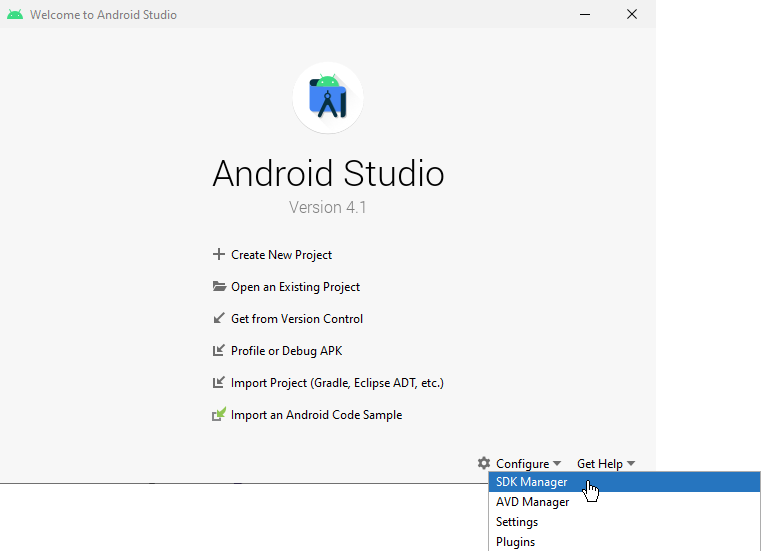
- Open Android Studio, in the Welcome screen select Configure, and in the dropdown menu select SDK Manager.
- In the SDK Manager window in the SDK Tools tab select CMake and NDK, and click OK.
Android Studio installs the Android NDK and CMake you need for building and deploying Kanzi applications for Android.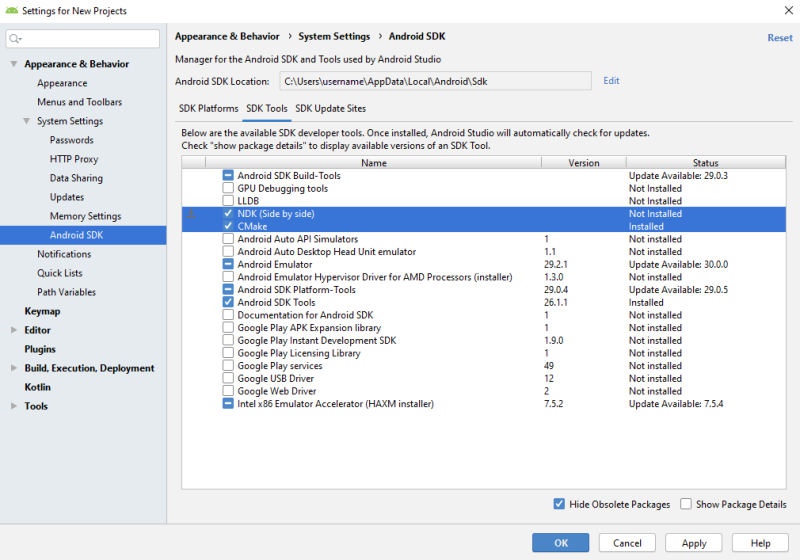
Before you can build and deploy Kanzi applications to Android devices you need to install on your computer the USB device drivers for your Android device. See Installing Android USB driver for your Android device.
Installing Android USB driver for your Android device
Before you can deploy your Kanzi application to your Android device, you have to install on your computer the Android USB driver for your Android device.
To install the Android USB driver for your Android device:
- Find the Android USB driver on Android developer website page Android OEM USB Drivers or install the drivers provided by the manufacturer of your device.
- Follow the installation instructions provided on the Android developer website or the manufacturer of your device.
- On your Android device:
- In Settings enable Development options.
- In Settings > Security enable Unknown sources.
- If you are using a Samsung device in USB computer connection enable the Camera (PTP) setting.
- After connecting your Android device to your computer, on your Android device allow USB debugging when prompted.
- (Optional) To check that the device drivers are installed correctly, connect your Android device to your computer, run
adb devicescommand in the Windows command prompt.
If the Android USB driver is installed correctly, your device is listed in the command output.
Viewing the Kanzi environment variables
To view the current Kanzi environment variables, in Kanzi Studio select > User Preferences and in the Advanced tab click Open Build Environment Configuration.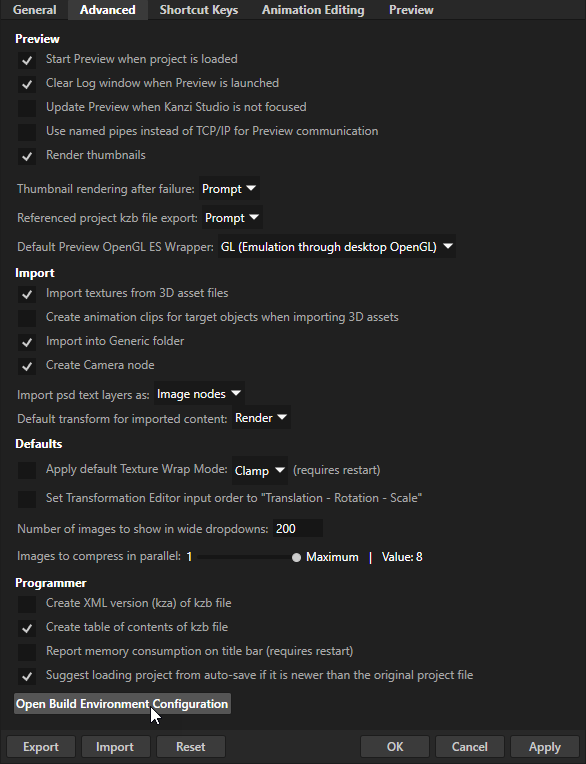
When you use Kanzi Build Environment tool to install the build environment, Kanzi sets the environment variables. You can set the Kanzi environment variables in %ProgramData%\Rightware\<KanziVersion>\kanzi_environment_variables.bat. This way you can configure Kanzi build environment without changing your system's environment variables. See Setting the Kanzi environment variables.
Testing your Kanzi build environment
To test whether your Kanzi build environment works, create a Kanzi application and deploy it to your platform. See Tutorial: Create a simple in-vehicle infotainment application and Deploying Kanzi applications.
See also
Deploying Kanzi applications to Android
Tutorial: Create a simple in-vehicle infotainment application
